
How to Restart Mac with Keyboard: Simple Methods That Work
 Harris Brown
- 9 min read
On this page
- Why You Might Need to Restart Your Mac with Keyboard
- The Main Keyboard Shortcuts to Restart Your Mac
- What to Do Before You Restart
- Step-by-Step Guide for Each Restart Method
- Troubleshooting Common Problems
- Alternative Methods When Standard Shortcuts Fail
- When to Use Each Restart Method
- Preventing the Need for Emergency Restarts
- Understanding Your Mac’s Response to Keyboard Restart
- Testing Your Keyboard Functions
- Conclusion
Learning how to restart Mac with keyboard can save you time and make your computer work better. Sometimes your mouse stops working or your screen freezes. When this happens, keyboard shortcuts become your best friend. This guide shows you easy ways to restart your Mac using just your keyboard.
Restarting your Mac fixes many common problems. It clears memory, stops stuck programs, and gives your computer a fresh start. You don’t need to be a tech expert to do this. Just follow these simple steps.
Why You Might Need to Restart Your Mac with Keyboard
Your Mac might freeze or stop responding for many reasons. Here are the most common situations:
- Your mouse cursor won’t move or click
- Apps stop working and won’t close
- Your screen is frozen on one image
- The trackpad doesn’t respond to touch
- Your Mac runs very slowly
When these problems happen, keyboard shortcuts become very useful. You can restart your Mac without touching the mouse or trackpad at all. This works even when your computer seems completely stuck.
Quick Fix vs Complete Restart
Sometimes you just need a quick fix. Other times you need a full restart. A quick fix might solve small problems. But a complete restart fixes bigger issues and clears all memory.
Think of it like this: a quick fix is like splashing water on your face when you’re tired. A full restart is like getting a good night’s sleep. Both help, but one gives you a complete fresh start.
The Main Keyboard Shortcuts to Restart Your Mac
There are several ways to restart Mac with keyboard. Each method works in different situations. Let’s start with the most common ones. If you want to turn the Mac off instead, see how to shut down a computer with the keyboard.
Method 1: The Standard Restart Shortcut
This is the easiest and safest way to restart your Mac:
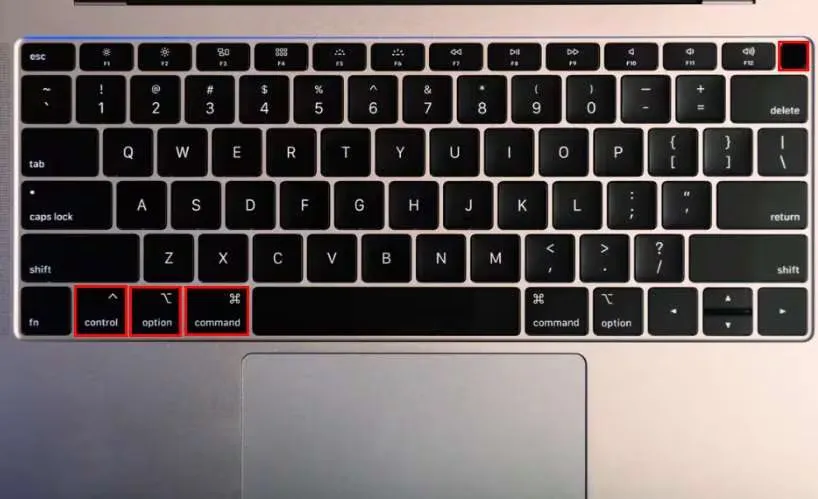
- Press Control + Power button (or Control + Touch ID button)
- A box appears with Restart, Sleep and Shut Down
- Press R to choose Restart, or press Return if Restart is highlighted
- Wait for your Mac to turn back on
Your Mac asks apps to close and gives you a chance to save work before restarting. It’s like telling your Mac “please restart when you’re ready.”
Method 2: Force Restart When Mac is Frozen
When your Mac is completely frozen, use this stronger method:
- Press and hold Control + Command + Power button (or Touch ID button)
- Your Mac restarts immediately without asking to save anything
- If that doesn’t work, hold the power button for about 10 seconds until the screen goes black
- Press the power button once to turn it back on
This is like forcing your Mac to restart. It doesn’t save your work, so only use this when your Mac won’t respond at all.
Method 3: Using the Apple Menu with Keyboard
If your mouse doesn’t work but your keyboard does, try this:
- Press Control + F2 (or Fn + Control + F2) to access the menu bar
- Use arrow keys to navigate to the Apple menu
- Press Enter to open the menu
- Use arrow keys to select “Restart”
- Press Enter to confirm
This method works when your screen responds but your mouse doesn’t. It’s perfect for minor problems where your Mac still works but feels sluggish.
What to Do Before You Restart
Before you restart your Mac, try these quick steps. They might fix your problem without restarting:
Try Force Quit First
Sometimes just one app causes problems. Force quit it instead of restarting your whole Mac:
- Press Command + Option + Esc
- Select the problem app
- Click “Force Quit”
This closes stuck apps without affecting other programs. It’s faster than restarting and often solves the problem.
Check Your Keyboard
Make sure your keyboard works properly before trying to restart. Sometimes keyboard issues can make restart shortcuts fail. Test a few keys to confirm they respond.
If you’re using a wireless keyboard, check the battery. Low battery can cause connection problems. For wired keyboards, make sure the cable is connected properly.
Step-by-Step Guide for Each Restart Method
Let’s go through each restart method in detail. Follow these steps exactly for the best results.
Safe Restart Method (Recommended)
This is the best method to use first:
Step 1: Make sure no important work is unsaved. This method usually saves your work, but it’s better to be safe.
Step 2: Find the Control key and the Power button on your keyboard. On many Macs the Power button is also the Touch ID button in the top right corner.
Step 3: Press Control and the Power button together.
Step 4: When the box appears, press R to restart. If you see “Are you sure you want to restart?”, confirm it.
Step 5: Wait. Your Mac closes your apps and restarts automatically.
Emergency Force Restart
Use this only when your Mac is completely frozen:
Step 1: Accept that you might lose unsaved work. This method doesn’t save anything.
Step 2: Locate the Control and Command keys and the Power (Touch ID) button.
Step 3: Press and hold all three together. If the Mac does not react, keep holding the power button alone for about 10 seconds.
Step 4: Your Mac will turn off or restart. The screen goes black for a moment.
Step 5: If it stays off, wait 5 seconds, then press the Power button once to turn your Mac back on.
Troubleshooting Common Problems
Sometimes restart shortcuts don’t work as expected. Here’s how to fix common issues:
Keyboard Shortcuts Not Working
If the shortcuts don’t work, check these things:
- Make sure you’re pressing the right buttons
- Hold the force-restart buttons long enough (up to 10 seconds)
- Check if your keyboard is connected properly
- Try a different keyboard if you have one
Sometimes keyboard connection issues prevent shortcuts from working. If you’re using a wireless keyboard, move closer to your Mac or try a wired keyboard.
Mac Won’t Turn Back On
If your Mac doesn’t turn on after restarting:
- Check the power cable connection
- Try a different power outlet
- Wait 30 seconds before pressing power again
- Hold the power button for 10 seconds, then try again
Don’t panic if this happens. Most of the time, waiting a bit longer solves the problem.
Restart Takes Too Long
Sometimes restart takes several minutes. This is normal when:
- Your Mac has many programs running
- You haven’t restarted in a long time
- Your hard drive is very full
- Updates are installing
Be patient and let your Mac finish. Forcing it off during restart can cause bigger problems.
Alternative Methods When Standard Shortcuts Fail
If keyboard shortcuts don’t work, try these backup methods:
Using Terminal Commands
If you can still type but shortcuts don’t work:
- Press Command + Space to open Spotlight
- Type “Terminal” and press Enter
- Type “sudo shutdown -r now” and press Enter
- Enter your password when asked
This method uses text commands instead of button shortcuts. It works when keyboard shortcuts fail but typing still works.
Physical Power Button Method
As a last resort, use the physical power button:
- Hold the power button for 10 seconds
- Your Mac will turn off completely
- Wait 10 seconds
- Press the power button once to turn it back on
This method should always work. It’s like unplugging your Mac and plugging it back in.
When to Use Each Restart Method
Different situations need different restart methods. Here’s when to use each one:
Use Safe Restart When:
- Your Mac is slow but still responding
- Apps are acting strange but not frozen
- You want to clear memory and start fresh
- Your Mac feels sluggish after many hours of use
Use Force Restart When:
- Your screen is completely frozen
- Nothing responds to clicks or keypresses
- The cursor won’t move at all
- Your Mac has been stuck for several minutes
Use Terminal Method When:
- You can type but shortcuts don’t work
- The keyboard responds but restart shortcuts fail
- You’re comfortable using text commands
Learning different keyboard techniques can make you much more efficient. For example, knowing how to switch between tabs can speed up your daily work.
Preventing the Need for Emergency Restarts
Regular maintenance helps prevent Mac freezes. Here are simple tips:
Restart Regularly
Restart your Mac at least once a week. This clears memory and prevents small problems from becoming big ones. Think of it like taking a short break – it helps everything work better.
Keep Your Mac Updated
Install system updates when they’re available. Updates fix bugs that can cause freezes. Check for updates in System Settings > General > Software Update.
Don’t Overload Your Mac
Running too many programs at once can cause freezes. Close apps you’re not using. Keep an eye on how many browser tabs you have open.
Monitor Storage Space
Keep at least 10% of your hard drive free. When storage gets too full, your Mac slows down and might freeze more often.
Understanding Your Mac’s Response to Keyboard Restart
When you restart your Mac with keyboard shortcuts, several things happen:
First, your Mac tries to close all programs safely. This takes a few seconds. You might see spinning wheels or “Saving…” messages.
Next, your Mac shuts down completely. The screen goes black and all lights turn off. This is normal and expected.
Finally, your Mac starts up again. You’ll see the Apple logo and a loading bar. This process usually takes 1-3 minutes.
Understanding these steps helps you know what to expect. Don’t worry if it takes a bit longer than usual – that’s often normal.
Testing Your Keyboard Functions
After restarting, it’s smart to test your keyboard. Make sure all keys work properly. You can use keyboard testing tools to check every key.
Pay special attention to the keys you use for restart shortcuts. If they don’t work properly, you might have trouble next time you need to restart.
Also check other useful functions like keyboard backlighting to make sure everything works as expected.
Conclusion
Learning how to restart Mac with keyboard is an essential skill for every Mac user. These simple shortcuts can save you time and fix many common problems. Remember to try the safe restart method first, and only use force restart when absolutely necessary.
Practice these shortcuts when your Mac is working fine. This way, you’ll remember them when you really need them. Keep this guide handy for reference, and don’t be afraid to restart your Mac regularly – it’s one of the best ways to keep it running smoothly.
The key is knowing which method to use in each situation. Start with gentle methods and work your way up to stronger ones only if needed. With these techniques, you’ll be able to handle almost any Mac problem that comes your way.

Harris Brown
I'm Harris Brown, an experienced web developer and keyboard enthusiast who creates content about keyboard testing and optimization at keyboardtester.io
Related articles
What Is a Keyboard Tester and Why You Need One
A keyboard tester shows whether every key registers correctly. Learn when to test your keyboard, the signs of a failing key and how to run a test.
How to Change the Color of Your Keyboard
Want your keyboard to glow a different color? Learn how to check for RGB lighting and change keyboard colors with software, key shortcuts and settings.
How to Shut Down Computer with Keyboard: Quick and Easy Methods
Turn off your PC or Mac without a mouse. Keyboard shortcuts like Alt + F4 and Ctrl + Alt + Delete for Windows, plus the shutdown shortcuts on Mac.